Guides
Eagle TV: A Practical Guide to Eagle IPTV, Devices and Setup
Looking for Eagle TV? This practical guide covers Eagle IPTV on eagletviptv.com, with device checks, subscription advice and clear setup guidance.
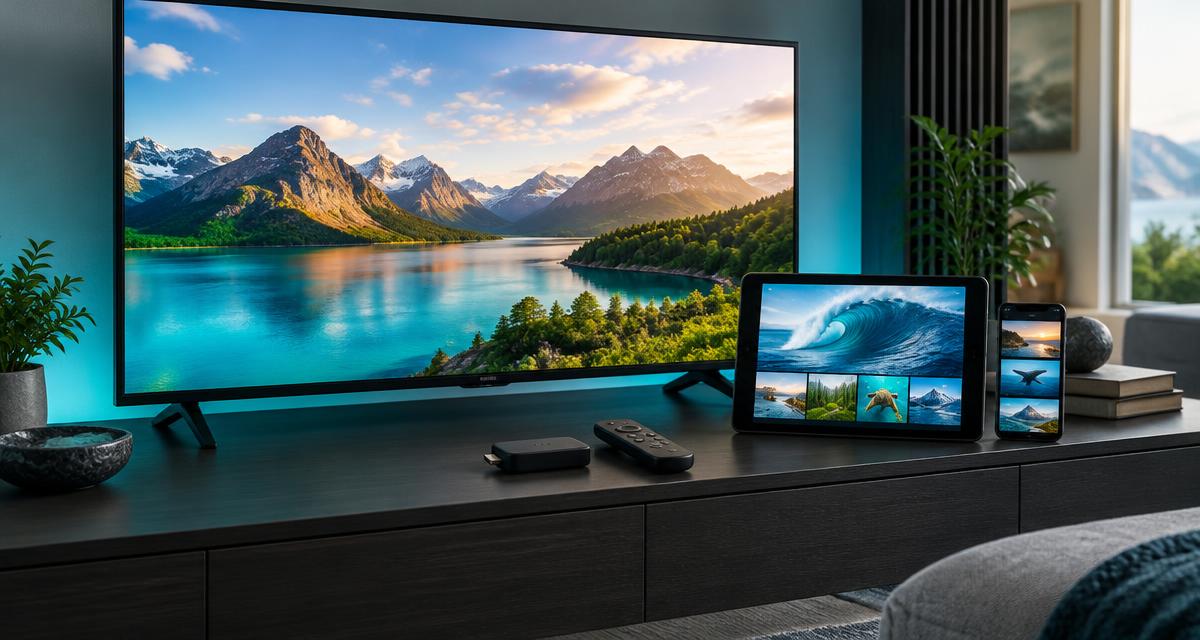
- #Eagle TV
- #Eagle IPTV
- #Devices
- #Installation
Looking for Eagle TV? Start with the Right Service
Searching for Eagle TV can bring up different streaming services, channels, and similarly named businesses. If you are looking for the Eagle IPTV service presented on eagletviptv.com, this guide explains what to check before subscribing, how to prepare your device, and how to approach installation without unnecessary trial and error.
This article covers Eagle IPTV on this website only. It should not be treated as information about every service using the Eagle TV name.
What Is Eagle IPTV?
Eagle IPTV is a subscription-based streaming service designed for use with compatible applications and devices. The website presents subscription options for live television and on-demand movies and series, with different durations and device limits.
Your viewing experience depends on more than the subscription itself. The application, device, internet connection, selected package, and availability of individual streams all matter. Before ordering, confirm the content and features that are important to you rather than assuming every channel or title will always be available.
You can explore the channel information and movies and series page before contacting support with specific questions.
Which Devices Can You Use?
Eagle IPTV can be configured through supported players on a range of devices. Compatibility depends on the exact model, operating system, application availability, and login format provided with your subscription.
- Amazon Fire TV devices, including compatible Fire TV Stick models.
- Android TV and Google TV televisions and streaming boxes.
- Samsung and LG Smart TVs with compatible applications.
- Android phones and tablets.
- iPhone and iPad using supported players.
- Windows and Mac computers with compatible desktop software.
- Supported Formuler and MAG devices.
A television being described as a Smart TV does not automatically mean it supports every IPTV player. Check your model and its application store first. The device compatibility page is a useful starting point.
How to Choose the Right Subscription
Start with the number of devices you intend to use. Eagle IPTV offers options for one, two, three, or four devices, alongside different subscription durations. Select the plan that matches your intended usage and confirm simultaneous viewing rules before paying.
For example, a household watching on a living-room television and a second screen should ask whether its selected plan permits both streams at the same time. Installing an application on several devices is not the same as having permission to stream simultaneously on all of them.
Review the current Eagle IPTV pricing instead of relying on prices shown on unrelated Eagle TV websites. If a trial is available, use it to check your own device, connection, and preferred content. Trial availability depends on current conditions and must be confirmed with support.
Prepare Your Device Before Installation
A few checks can prevent common setup problems:
- Identify your device precisely. Note the model and operating system so support can recommend an appropriate player.
- Update the device and application. Older software can cause compatibility or playback problems.
- Check available storage. Leave enough space for the player and its working data.
- Test your connection near the screen. A fast connection elsewhere in the house does not prove that the television receives a strong signal.
- Confirm the login method. Ask whether your player should use a playlist URL, server address and credentials, or another supported method.
Treat subscription credentials as private. Do not post screenshots containing passwords or full playlist links in public forums.
Installing Eagle IPTV on Firestick, Smart TV or Android
The exact installation process varies by platform, but the basic sequence is similar: install a compatible player, enter the supplied subscription details, allow the content list to load, and test playback.
Fire TV Stick
Follow the Eagle IPTV Firestick guide and use the recommended installation source. If the required application is not available in the device’s store, confirm its legitimate developer source before installing anything. Avoid random download links or applications promising free subscription credentials.
Samsung and Other Smart TVs
Check which compatible players are available for your television’s operating system. Some applications have their own activation charge, separate from the streaming subscription. Confirm this before committing to a player. The Smart TV setup guide covers the next steps.
Android TV
Choose a player suitable for television controls rather than assuming a phone application will work comfortably with a remote. After entering your subscription details, test a live channel and an on-demand item separately. See the Android TV guide for platform-specific guidance.
Understanding Picture Quality and Buffering
Higher-resolution playback requires compatible content, hardware, application support, and a sufficiently stable connection. A television capable of 4K does not make every stream 4K, and support for 8K does not mean that every channel is available in that format.
If playback buffers, change one variable at a time. Test another channel, pause other large downloads, and compare Wi-Fi with Ethernet where available. If only one stream fails while others work normally, report that specific channel or title rather than immediately reinstalling the application.
Avoid clearing application data until you have saved your login details securely. Doing so can remove your configuration and create an additional setup problem.
Questions to Ask Before Ordering
- Does my exact device support the recommended application?
- Does the player require a separate purchase or activation?
- What simultaneous device usage does my plan permit?
- Are my preferred channels or languages currently available?
- Is a trial available for my device and location?
- Which setup instructions and refund conditions apply?
Only access content you are entitled to watch, and follow the laws applicable in your country. A player application or subscription alone does not establish the licensing status of every stream. Read the refund policy and terms of service before ordering.
Ready to Check Your Setup?
The best starting point is your actual device and viewing needs—not a headline promise. Compare the available plans, confirm compatibility, and ask about the content you want before ordering.
Contact Eagle IPTV support with your device model, preferred subscription duration, and intended number of screens, or use the WhatsApp button below.
Frequently Asked Questions
Ready to try Eagle IPTV?
Chat with our team on WhatsApp for plans, device compatibility, and instant activation.
Ask us on WhatsAppJoin the Eagle IPTV newsletter
Fresh setup guides, streaming tips, and Eagle IPTV updates — straight to your inbox. No spam, unsubscribe any time.